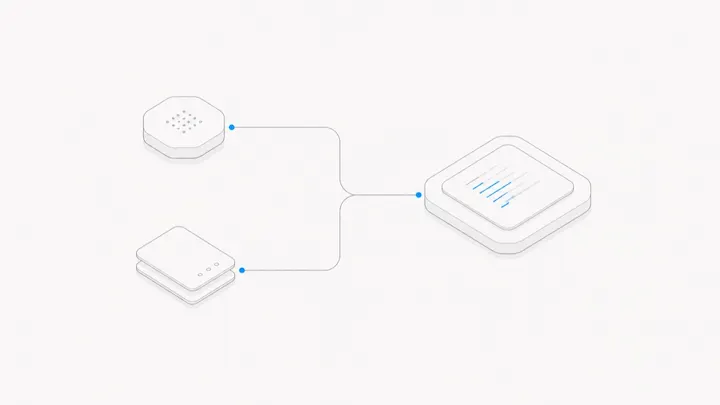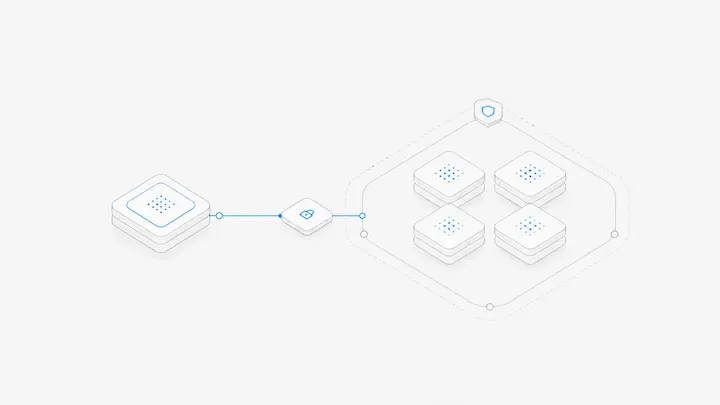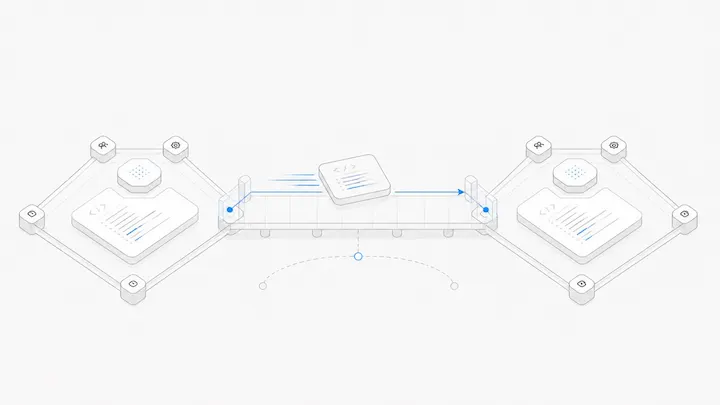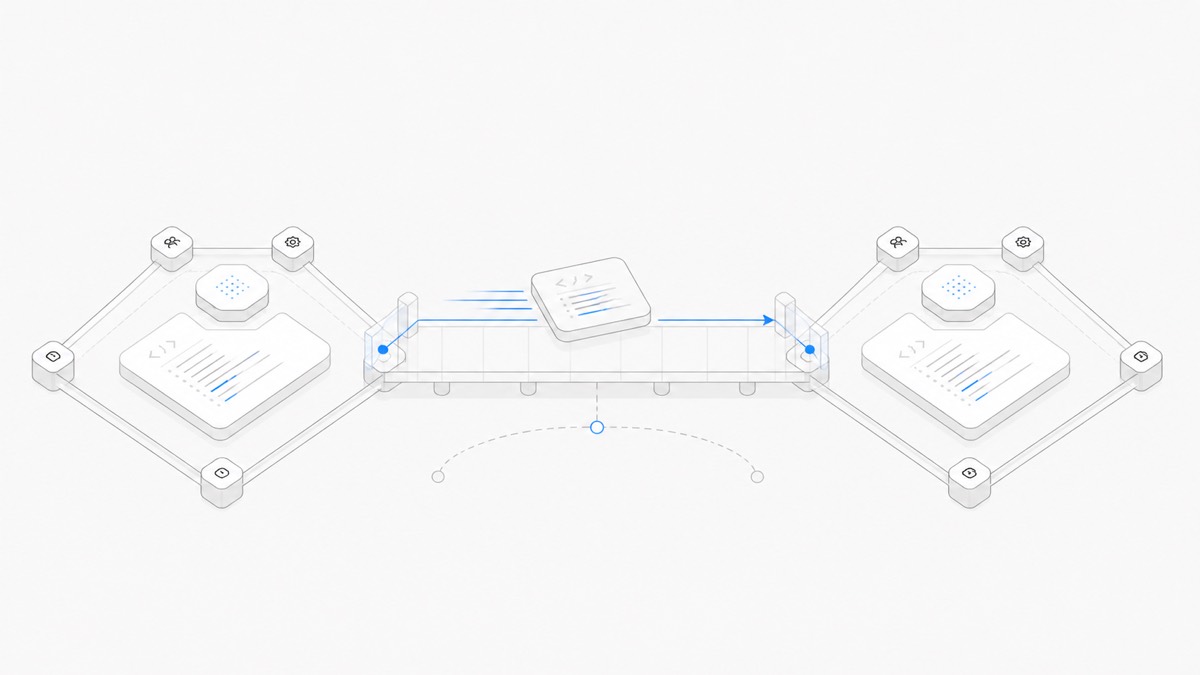
Remote Screen lets you interact with another Mac's desktop or bring an individual remote app into your local desktop. It is a human-control tool: you click and type in applications running on the other machine. That is different from sending instructions to a coding agent.
The native Mac-app route has its own system requirements, listed on the Remote Screen page. Separate those requirements from the device you use to control a Workspace-connected Mac: the current product manual also describes browser access from other devices. A native iPhone or iPad app and a browser controller are not the same product surface. This is not a claim that every browser, operating system, or network has been tested.
Remote Screen is part of the Macshop Mac app, and there are two ways in. With a device code, one Mac can ask to control another without an Macshop account; the next two sections cover that route. For Macs connected to a Workspace, you can open your own connected Macs without a device code, and Workspace members can control a Mac only while its owner has set its Remote control to Everyone; the section on Workspace computers covers that route.
Prepare the two Macs
Install the Macshop Mac app on both supported Macs; this route needs no account. On the Mac that will be controlled, open the app's Remote tab, turn on Allow Control by Code, and review the requested screen-recording and accessibility permissions.
These are consequential permissions. Screen access can expose documents, messages, and account details; control permission allows input into applications. Close unrelated private windows and decide whether this machine is appropriate for remote access before approving the prompts.
Workspace roles do not grant screen control by themselves. In the Mac app route, a member can control another person's Mac only after its owner sets that computer's Remote control to Everyone, which means the Workspace's Owners and Editors. Letting members run Agents there is a separate choice, Chats & files. Whoever sends a task on that Mac picks its permission mode, including full access: no approval prompts, any command, and files outside the shared folder. Review workspace roles and permissions before sharing a Mac with colleagues.
Connect to the intended machine
On the controlling Mac, open Remote Screen from the Remote tab. It discovers Macs on the same network; across networks, enter the controlled Mac's device code. Verify the destination on both sides before approving the first connection; do not rely only on a familiar-looking display name.
Some restrictive networks may prevent the direct connection. Do not fix that by disabling a corporate firewall or broadly exposing the Mac to the internet. Ask the network owner to evaluate the requirement, or use another approved access method.
Control a Workspace computer from the Mac app
If a Mac is already connected to a Workspace through the Macshop Mac app, you do not need a device code. On the Mac to be controlled, open the app's Remote tab and allow Screen Recording and Accessibility. Until both are allowed, other devices show it as not turned on.
On the controlling Mac, connect the Mac app to the same Workspace. Then choose the computer under Control Another Computer, or select Remote control for it on the Workspace's Use local computer page. Your own connected Macs appear there; another member's Mac appears only while its owner has set its Remote control to Everyone. Controllers reach the Mac through Macshop rather than local-network discovery.
Unlike a first connection by device code, nobody at the controlled Mac is asked to approve a Workspace connection. The Mac's Remote tab lists who is controlling it now and can disconnect them. To stop members from connecting again, the Mac's owner sets Remote control back to Only you in the Mac app.
Use the browser from Windows or a phone
For a Workspace-connected Mac, the computer guide describes browser control from other devices. Start in the intended Workspace, find the target Mac in its computer list, and choose Remote control. Enable remote control and the required permissions on the target Mac first.
This is the Workspace route, not an instruction to enter a device code in any browser. The target remains a Mac running the required App; opening the controller on Windows does not make Windows a supported screen-sharing host.
Before working, check:
- The target computer is online and is the one you intended.
- Your account can access that Workspace and the owner permits the required computer access.
- The remote screen is visible and a harmless click or test input reaches the correct window.
- You can disconnect and distinguish ending the current connection from removing future access.
On a phone, begin with a small inspection task rather than a long typing session. If the entry is missing or the connection fails, check the target App, permissions, and the current product requirements; do not turn on broad sharing to experiment.
These steps follow the current manual. We have not tested every Windows browser or phone. Do not infer native-app feature parity, including clipboard behavior, from the existence of a browser connection.
Choose an entire desktop or one app
Use the full desktop when a task spans several applications or you need to understand the machine's state. Use a single remote app when the job is narrower and you want it alongside local windows.
The native Mac-app experience describes individual app windows, Dock integration, and text/image clipboard exchange. Do not assume those native integrations exist in the browser controller. Treat the clipboard as another data path: before pasting, check both its content and the destination. A single-app view should not be mistaken for a security sandbox that limits everything the remote user could access.
For example, a developer might keep a local task brief open beside a remote editor. The practical benefit is less context switching—not proof of faster agent execution. Your model still runs through its configured provider, and the program still executes on the chosen machine.
Verify with harmless actions first
Before opening a production project, use a non-sensitive text document. Confirm that you can identify the remote machine, type a short test sentence, see the result, and disconnect. Try clipboard transfer only with disposable text, not a password or token.
Record whether the connection works on the networks you actually use. The product's performance figures have specific test conditions and should not be treated as a guarantee for your connection. We have not measured your network latency or bandwidth.
Disconnect and revoke access when finished
The product provides visible remote-control indication, disconnection, and revocation of trusted devices. Review trusted devices after lending, replacing, or losing a client computer. Ending a viewing session and revoking future trust are distinct actions.
When helping another person with Remote Screen, have them approve access themselves and agree on what you will open. Do not silently enable permanent access for convenience. In a Workspace, setting Remote control to Everyone is the approval, so use it only when every Owner and Editor of that Workspace may operate that Mac, and set it back to Only you when they no longer need it.
When the remote computer is a rental, use the cloud Mac location checklist to test the connection from your usual network. Windows users who need Xcode should also check the remote Mac workflow and device-testing limits before choosing an access method.
Use it as the human part of an agent workflow
An agent can investigate code, while a human may still need to inspect an application or make a decision. Keep that distinction explicit in the task: define which actions the agent may take and which require you.
Read how Macshop keeps a project together, then review Remote Screen and its current download requirements. If you need a separate machine as well as remote access, evaluate Dedicated Mac; the screen tool and the machine solve different parts of the workflow.
To decide when to stay in the agent conversation and when to operate the screen yourself, compare Claude Code Remote Control with remote desktop access.