You can already ask an Agent to build pages and organize files. Next, you may want to read real data from an external service. Plugins address how an Agent works and what it can connect to.
Begin with a specific need, such as “read the latest work items from the project service.” Avoid installing a long list of capabilities just in case. Know what each one contributes to the current task.
Three names, three roles
A Skill does not automatically grant access to an external account. A plugin containing MCP may still need a service connection. Your Agent harness is the execution entry point; your Model is the model you select. Both are separate from plugins.
- SkillA repeatable way to do a task
- MCP connectionTools for an external service
- Account permissionDecides what a connection can read and write
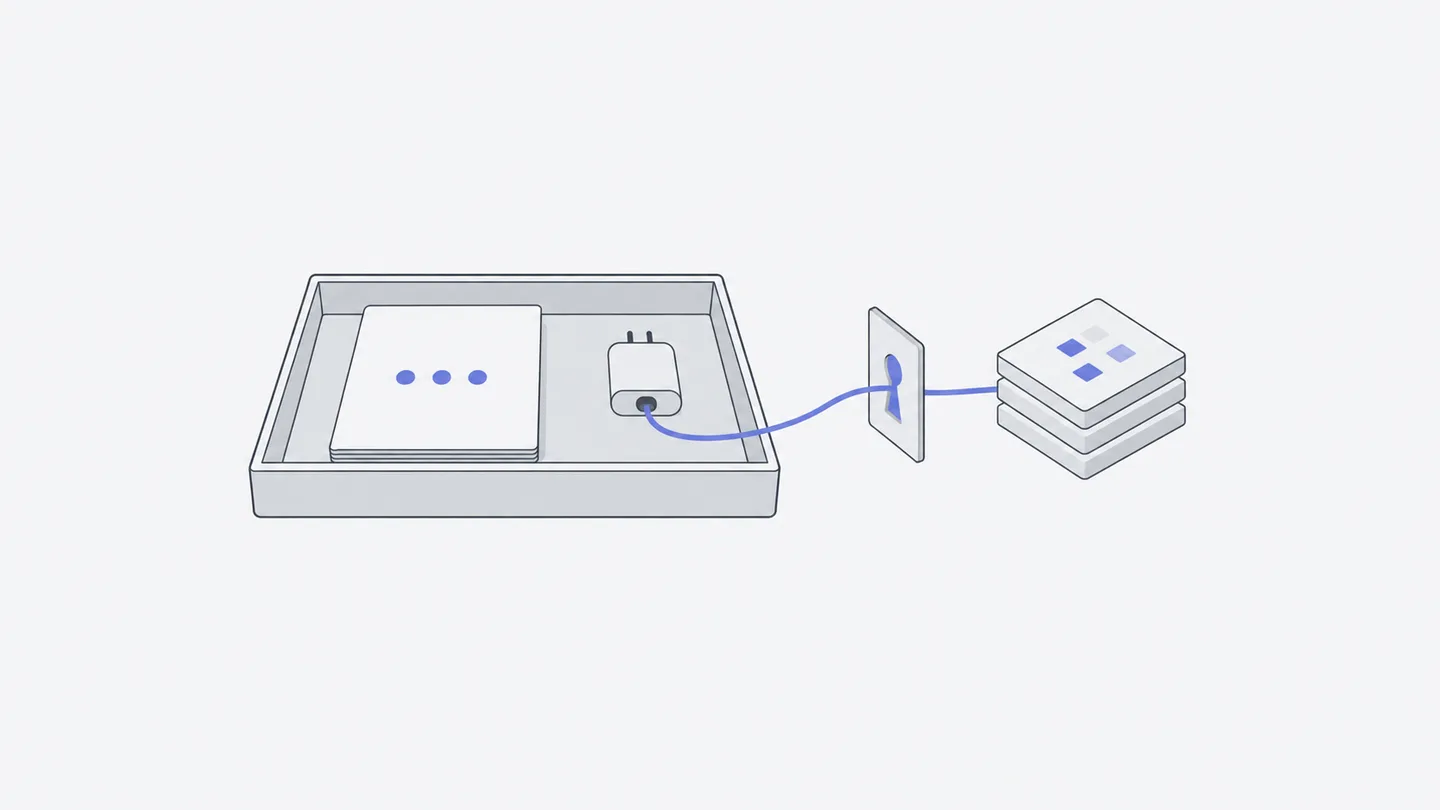
A plugin organizes methods and tools that the Agent uses to do the work. What a connection can read or write is decided by the external service’s account authorization.
Install, then verify the connection
Open the intended workspace and choose “Plugins” directly in the sidebar. The main page has “Installed” and “Discover plugins,” with search by name, scenario or Skill. Open a plugin, read its suggested uses and contents, then install what you need. Owners and editors can install, update and uninstall; viewers do not have the same management actions.
After installation, return to “Installed.” For an external connection, inspect “Connections” in the details. It may require no connection, need configuration, need OAuth login, or support only a particular Agent harness. Select the relevant “Connect …” action, follow the service’s login flow, then return to confirm its state.
Think of permissions in two layers: your workspace role determines whether you can manage plugins, while the external account and its authorization determine what a connection can read or write. During login, check the service, account and requested access. Use shared-workspace plugins for the purposes your team has agreed on.
Verify with a small, specific read:
Use the project service I just connected to read the five most recent work items in my specified project. List each title, state and source link. Read only; do not modify anything. If this Agent harness does not support the connection or authorization is missing, say so clearly and do not substitute sample data.
Accept traceable data, not merely a plausible answer. Open one source link and check its title and state. Do not let later work depend on the result before a real read succeeds.
Use advanced sources when you know what you need
“Advanced” at the upper right of Plugins offers Skills, MCP Servers and Agent Plugins. Independent Skills can be imported through supported links, folders or archives. Remote MCP uses an HTTPS service endpoint and form-based configuration. Agent Plugins support folders, ZIP files and public GitHub repositories.
These routes suit people who already have provider instructions or a team-approved resource. For ordinary use, start with a complete plugin in “Discover plugins,” where its contents are easier to inspect. A regular webpage URL is not an MCP endpoint, and knowing a plugin’s name does not mean it is installed.
Use “Update” or “Update all” explicitly when needed; installation does not promise automatic upgrades. Uninstalling removes the plugin from this workspace but does not revoke third-party account authorization. To stop that access too, use the service’s own authorization management.
The steps above manage capabilities inside an Macshop Workspace. To connect an external Claude Code client to tools instead, follow the Claude Code MCP setup guide; the client configuration and authorization are separate.
Keep a result in front of the team
If the team needs to check a result regularly, ask the Agent to make it a web page and publish it: only Workspace members can open it, and a page nobody opens for 30 days is deleted unless “Keep” is turned on. To refresh it regularly, create a scheduled task whose prompt says to rebuild and publish the page again; the address stays the same.
Work backward when something fails
If a plugin is missing, check the workspace and Installed list. If a connection is unavailable, check configuration, OAuth and harness support. If the data looks wrong, open a source link to compare, then check the authorized account and its access scope.
You have completed this chapter when one real capability call succeeds and the returned data matches its source links.