Your webpage opens, but the meeting time is buried at the bottom. “Make it better” might lead the Agent to change colors or add decoration without solving the problem. The most useful everyday collaboration skill is turning an observation into a clear task.
- PrepareChoose the Agent, model and attachments
- Queue and executeQueued inputs wait for their turn
- Read and follow upCheck results and give the next instruction
The diagram follows three stages: prepare input, queue and execute, then read and follow up. Text in the input box has not necessarily been sent; queued does not mean executed; a finished conversation does not mean the file has been saved and passed your checks.
Describe the observation, target, and what to keep
Return to the conversation that created the page so the Agent can use its existing context. Explain what is wrong, what you want to see, and which parts already work.
Focus on one testable result before giving the next set of instructions. If a choice remains open, say “Suggest two options first; wait for my choice before editing files.” To switch Agent harnesses, create a new conversation and explain the files and agreed decisions. Do not assume it knows the whole previous exchange.
Supply materials and explain their purpose
Use the attachment control to choose “Files,” or paste or drag files into the conversation area. Check the resource strip before sending and remove anything added by mistake. With a screenshot, specify its purpose: “Use this information order as a reference; do not copy its branding or wording.” Image support depends on the selected Agent and model. Resolve unsupported-image or upload errors before sending.
A conversation attachment is input for this turn, not an automatic workspace backup. Appearing in message history does not make the original permanently retrievable. If you will need it later, explicitly ask the Agent to save it in the workspace during this turn, then confirm it in Files. A thumbnail of a sent image is not a replacement for the original.
For an existing workspace file, give its path and ask the Agent to read the current content. File references, screenshots, and webpage annotations serve different purposes: paths identify files, screenshots convey visual observations, and annotations identify particular elements.
Point to the exact place in the preview
Open the HTML preview, click “Annotate,” select an element, and describe the change. Mark several places if needed and send them with an overall instruction, such as “Address only these two annotations; leave the rest as it is.” The Agent receives the comments and information about the selected elements.

If a refresh produces a notice asking you to select the element again, reselect its current location. Do not reuse a target that has changed. You can also select text in a response or text file and use the available quote or add-to-conversation action, avoiding transcription errors and lost context.
Understand work activity and plans
Expand “Work activity” to see what the Agent read, what it ran, and which steps failed. If it provides a plan, entries can be pending, in progress, or completed. No plan does not mean no work, and not every task produces the same checklist.
A plan reports the Agent's progress; tool records describe execution. Neither replaces checking the final file. If a failed step later passes on rerun, consider the final result. If the final response says a browser could not be run, do not treat visual appearance as verified.
Approval requests also differ from ordinary questions. The task initiator responds to initiator approval requests, using options supplied by the Agent. Cancel the request if the action is unclear. For a question such as “Which wording do you prefer?”, simply reply in the conversation.
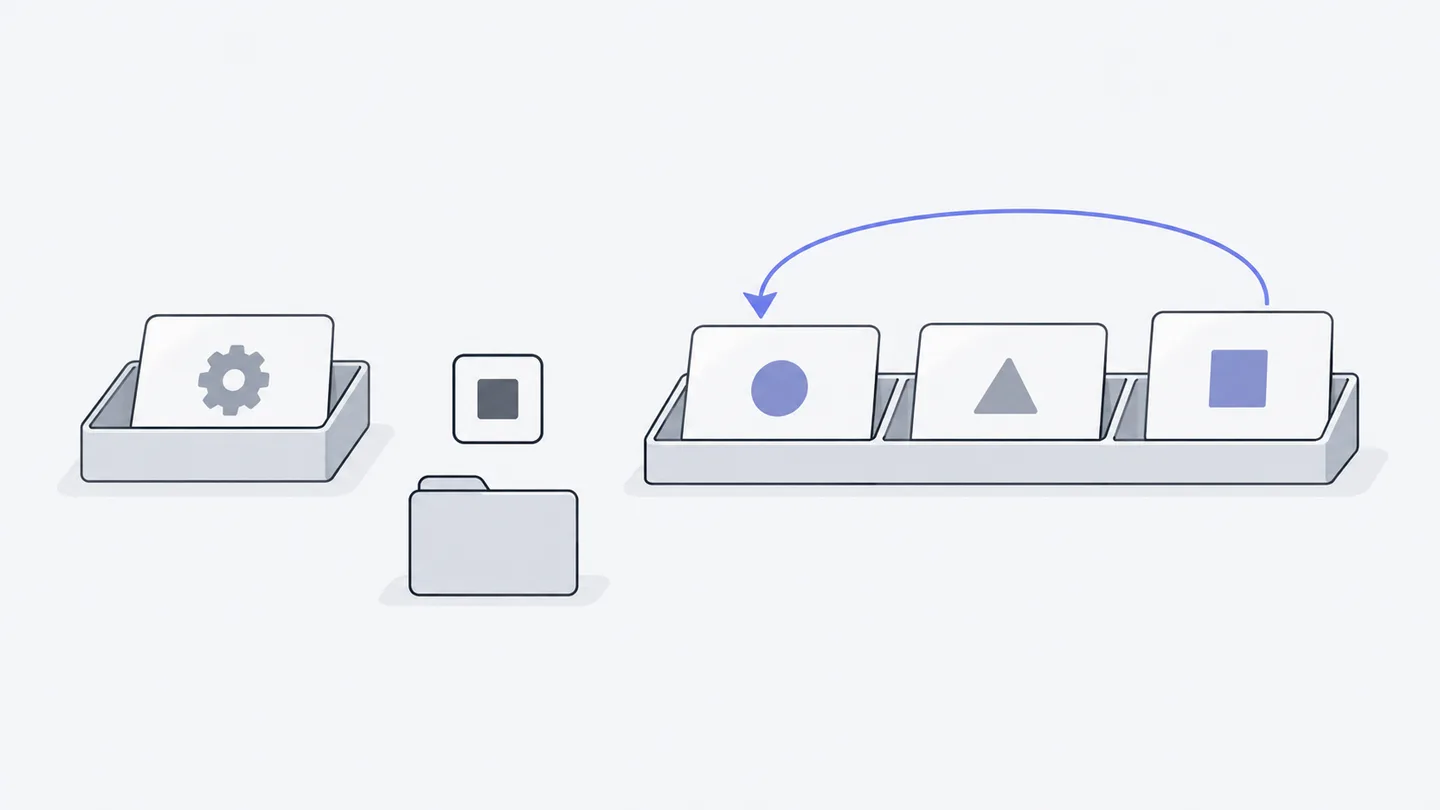
New instructions join the queue while it is busy
When the Agent is working, a new task appears under queued messages. This execution queue is shared by all members of the current conversation. A queued task enters the conversation history when execution begins. Another conversation can work at the same time without waiting in this queue.
Check the author and wording, then use the available controls: drag to reorder; move a task back into the input box to edit and resend; or withdraw a task you no longer need. The Owner can clear all entries; other members can clear their own. Available buttons reflect your current permissions.
“Prioritize” can stop the current task and run the selected message first when you have permission. It does more than label something important. To move a task earlier without interrupting current work, reorder the queue instead. Avoid repeatedly switching tasks while a stop is still in progress.
Stopping does not undo work; continuing starts another turn
If work heads in the wrong direction, use “Stop current task.” The task initiator or Owner can do this. Stopping ends the current request; it does not automatically reverse changes already written to files.
Check the queue too. Stopping the current task does not clear later tasks. Remaining inputs will still run, so withdraw the relevant queued tasks if you want to stop and rethink.
“Continue task” appears when applicable. It submits a new continuation request based on the previous turn; it does not restore a stopped process at the instant it was paused. When your target has changed, a fresh, explicit instruction is usually more useful:
Finish by checking the file
Open the original path in “Files” and confirm that the revision was saved. If you edit a text file directly, check the save result too. A code block in the conversation or an editing draft is not the current saved file.
Refresh a file preview that still shows old content, then confirm you opened the path the Agent actually changed.
Close the check with a fact: “I opened index.html in a narrow view; the full time and location are visible, and the button still works.” That is easier to revisit and hand over to teammates than “It should be fine.”