Who can comment, run tasks, and manage access?
Viewers can read shared work and leave text comments in member discussions. Editors can also change files and send Agent tasks. The Owner manages invitations and member roles. Commenting to people is not the same as asking an Agent to execute a task.
Shared files do not mean that every conversation knows all the background, and simultaneous edits are not automatically merged. Name the files, confirmed decisions, and permitted changes when handing work to another Agent.
For standard platform model calls, the Workspace owner's available entitlements apply. Local Agent tasks use the connected computer's login and subscription; BYOK calls are billed by the external provider. Check models, usage, and payment responsibility before inviting someone to run tasks.
The exercise below shows how to apply those boundaries.
The invitation page is almost ready. Lin notices that the rain plan is hard to find; Qing wants to know whether people can rest along the way. Invite them to the same Workspace so they can comment on the existing files and activity, without passing around multiple “final” versions.
- ContentWrite the agreed brief
- BuildUse the brief to make the page
- ReviewRecord findings for the next pass
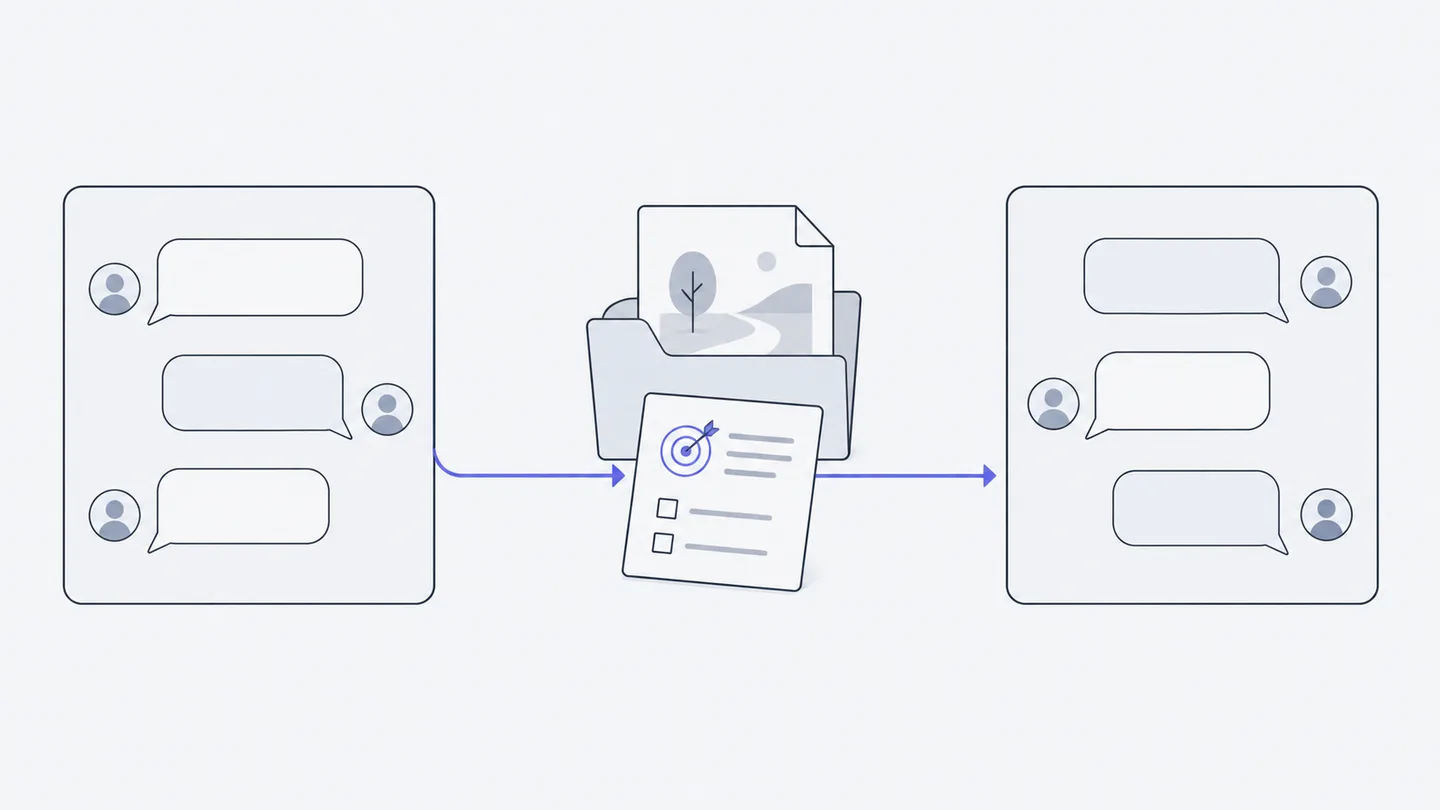
Members and Agents share workspace files in the diagram, while each Agent conversation has its own context. Shared materials help collaboration, but agreed decisions still need to be passed on explicitly.
1. Decide which permissions each person needs
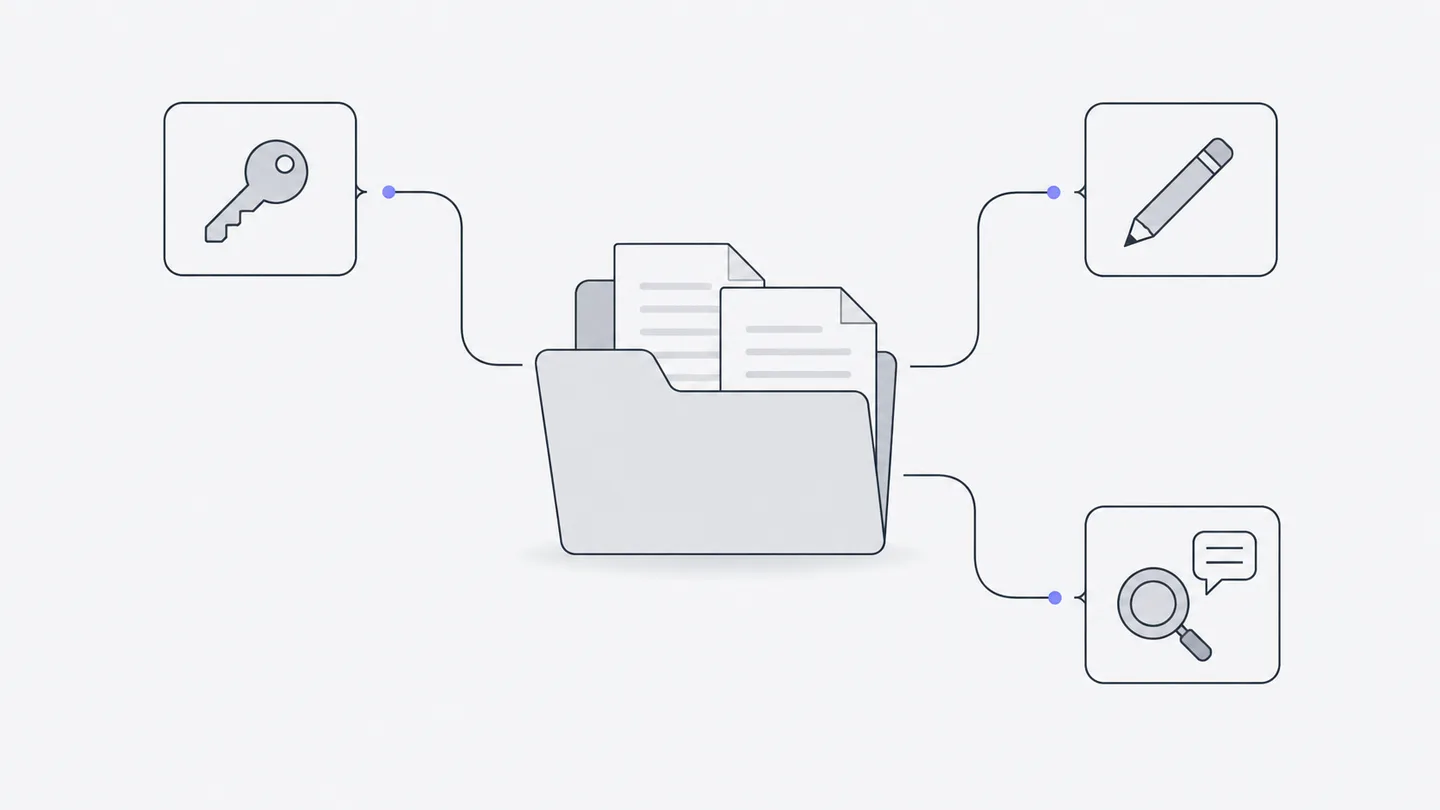
Open “Members” in the sidebar to reach “Members and permissions.” The Owner manages invitations and members; other members can inspect existing roles. Choose by responsibility. A friend does not need editing rights just to comment.
Here you are the Owner. Lin will invoke the reviewing Agent, so give Lin Editor access. Qing will inspect and comment, so Viewer is enough. Role changes affect later access; having joined once does not grant permanent permission.
2. Create and check the invitation
The Owner creates an invitation link in the relevant role section and can copy the link or share a QR code. Current invitations let multiple signed-in users join through the same link within seven days; the exact expiry is displayed. Check the role and intended recipients before sharing. The link grants entry to a shared workspace, not merely a finished webpage.
Your friends sign in with their own accounts, review the workspace name, role, expiry, and who pays, then accept. Registration preserves the invitation and returns to confirmation after verification. If joining fails, check whether the invitation expired or was revoked, or whether member capacity is full, then ask the Owner to resolve it.
Verify success concretely: both Lin and Qing can find weekend-walk/index.html and open the conversation that created it; Lin can send Agent tasks, and Qing can enter the discussion. To show only the finished work, download the webpage file and send it, or ask the Agent to create a temporary preview link with Cloudflare's official tools.
3. Discuss with people; assign tasks to the Agent
Open “Discussion” at the top of the conversation. Write something like “Should the rain note go beside the preparation list?” and mention the people who should respond. Mentioning a member in the main input and selecting a recipient also switches to discussion mode, where the Agent will not reply. Before sending, check whether the button sends to the discussion or to the Agent.
Member discussion supports text. If asked to remove attachments, file references, or annotations, do so first. Quote text from an Agent response, or use reply, to keep comments tied to their subject. Viewed and unviewed indicators report reading, not agreement or completion.
Qing might write, “I look for the meeting point first; place it beside the time.” Lin adds, “Keep the rain-postponement note.” You reply, “Both agreed; retain the current colors.” The Agent will not start editing automatically.
Once agreed, a member with execution permission can select discussion messages to give to the Agent and quote them into the input box. Review what will be included with the discussion, and add a clear instruction:
Members can continue an existing conversation; it is not limited to its creator. Messages sent directly to the Agent become tasks and may use model allowance or credits. Even “Discuss first, do not edit files” is a model task when sent to the Agent. If several people send while it is busy, check the shared queue before repeating a request.
4. Divide work between Agents and define writing boundaries
Different conversations in one workspace can run in parallel. You can revise the page in the original conversation while Lin starts another with an available Agent and compatible model to review the content. They need not use different brands. The task and permitted files define the division of work.
Copy this task for the reviewing Agent:
Keep review notes outside the website folder so internal material is not accidentally included when sharing the whole directory. To watch both conversations, see the current workbench options in Dynamic views.
For an existing code change rather than a webpage-copy review, see asking Codex to review Claude Code's work. Define the diff and keep review separate from permission to modify files.
5. Shared files do not merge themselves
Both conversations operate on the same current files. They do not get automatically isolated private copies, and conflicting edits are not reliably merged for you. One Agent edits the page while the other writes only review notes to avoid simultaneous rewrites.
The review may happen before page edits finish. Wait for the relevant tasks to complete, then read the current files again before acting on suggestions:
People decide which suggestions to adopt. The page conversation then applies them together. Qing opens the result to check the narrow layout and button.
6. Leave a handoff someone can use tomorrow
Members can browse shared conversations, but a new Session's Agent has not automatically read other conversations. When changing Agents, conversations, or owners of the work, provide at least the goal, files, settled decisions, and next step.
If someone can view but not edit, check their role. If a file is missing, confirm you are in the same Workspace. If the Agent repeats a rejected proposal, check whether that decision was included in the handoff. Approval requests belong to the task initiator; the Owner can also stop tasks. Ordinary members cannot approve every request for someone else.
At the end, you should know who owns changes to the current file, which feedback is agreed, and where the next person should resume. That lets more people and Agents reduce omissions instead of increasing guesswork.